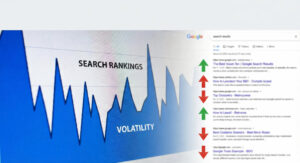
WordPress runs somewhere between 40 and 45 percent of all websites on the internet. In Texas, where SMBs tend to favor familiar, agency-supported platforms over custom builds, that percentage likely runs higher across the business landscape. Most Texas business owners chose WordPress for good reasons for its flexibility, plugin ecosystem, content management ease, and the availability of local agencies who know the platform.
What many of them haven’t examined is whether their WordPress site is actually set up for search. Not “does it have Yoast installed”. That’s a starting point, not a passing grade. The technical SEO requirements for a WordPress site in 2026 go well beyond plugin configuration, and the gap between “installed an SEO plugin” and “technically sound for Google and AI search systems” is wider than most site owners realize.
This checklist covers 30 specific technical audit points for Texas WordPress sites, organized by category, prioritized by impact, and written for someone who manages or owns their site and wants a clear picture of where it stands. Run it once as a full audit, then review the critical sections quarterly.
How to Use This Checklist
This isn’t a reading list. It’s a working framework. Before you start, open three tools alongside this post:
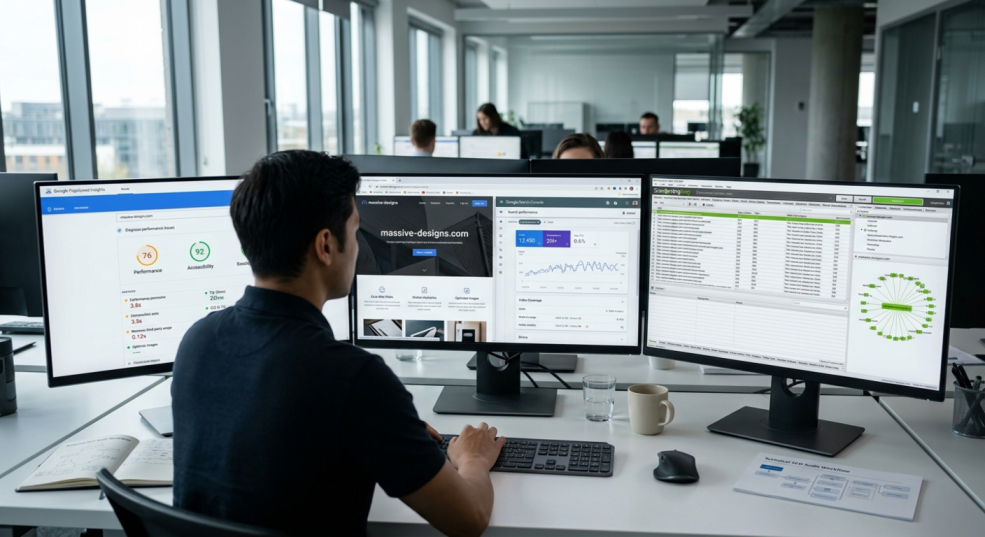
Google Search Console (free, connected to your site) — shows crawl errors, indexation status, Core Web Vitals data, and search performance.
Google PageSpeed Insights (free, no login required) — tests Core Web Vitals and speed performance from real-world Chrome user data.
Screaming Frog SEO Spider (free up to 500 URLs, paid for larger sites) — crawls your site the way Googlebot does and surfaces technical issues at scale.
Work through each section in order. Mark items as: Pass, Fail, or Needs Review. Anything that fails in Sections 1 or 2 is a priority fix before anything else. A site that Google can’t crawl properly or that loads slowly for mobile users isn’t going to benefit from excellent on-page optimization.
Section 1: Crawlability and Indexation

Before Google can rank your site, it needs to be able to crawl and index it correctly. This section catches the errors that silently prevent pages from appearing in search results at all.
Point 1 — Robots.txt Configuration
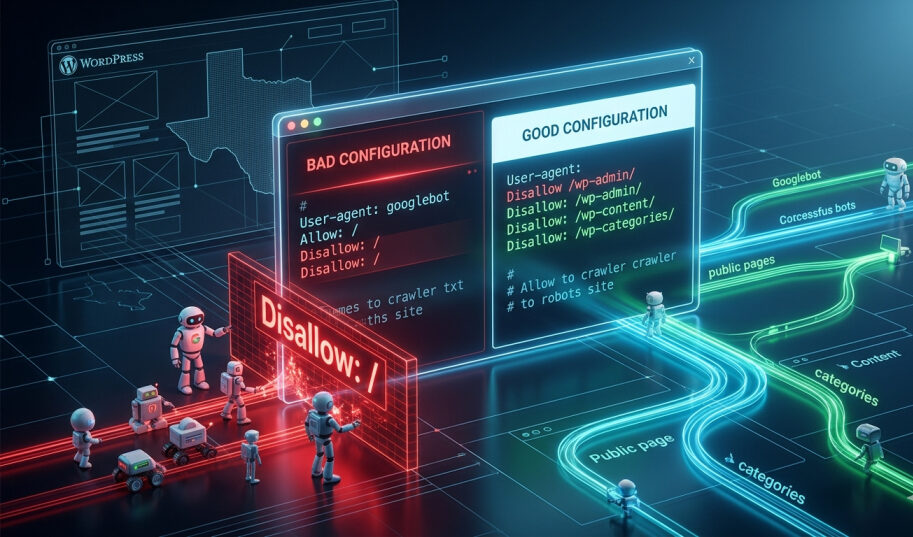
Your site’s robots.txt file tells search engine bots which pages and directories they’re allowed to access. A misconfigured robots.txt can accidentally block your entire site from being crawled.
Check yours by visiting yourdomain.com/robots.txt in a browser. Look for a “Disallow: /” line without a specific bot qualifier, that instruction blocks every crawler from accessing your entire site. It’s a common development environment leftover that doesn’t always get cleaned up at launch.
Also, check whether your WordPress admin areas (/wp-admin/) are correctly disallowed and whether any important content directories are being unnecessarily blocked.
Point 2 — XML Sitemap Presence and Search Console Submission
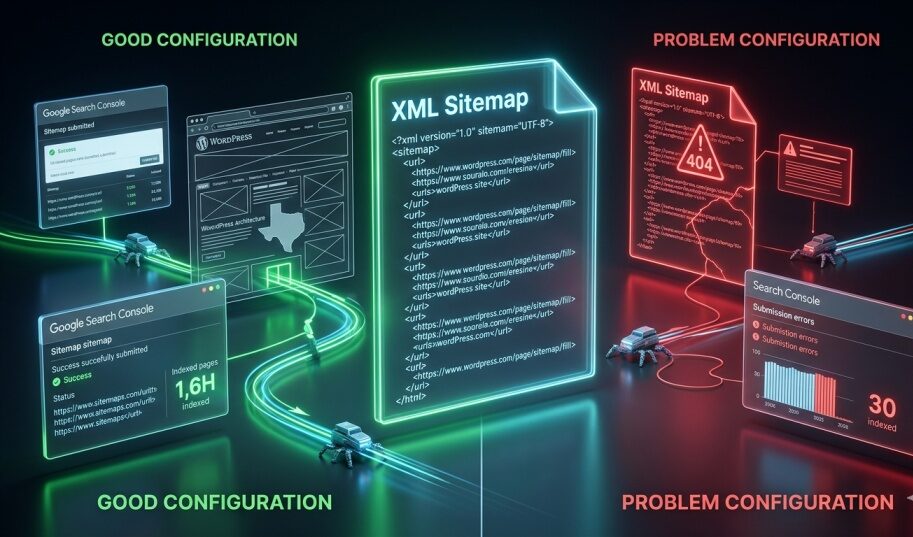
Your XML sitemap is a structured roadmap of your site’s pages, submitted to Google to help it discover and prioritize content for crawling. In WordPress, Yoast SEO and Rank Math both generate sitemaps automatically, but generating one and actually submitting it to Google Search Console are two different steps.
Log in to Search Console, navigate to Sitemaps, and confirm your sitemap URL is submitted and processing without errors. A sitemap that 404s or generates errors is functionally useless. While you’re there, check the indexed count against your known page count; a large gap between submitted and indexed often signals crawlability or quality issues worth investigating.
Point 3 — Noindex Tags on Pages That Should Be Visible
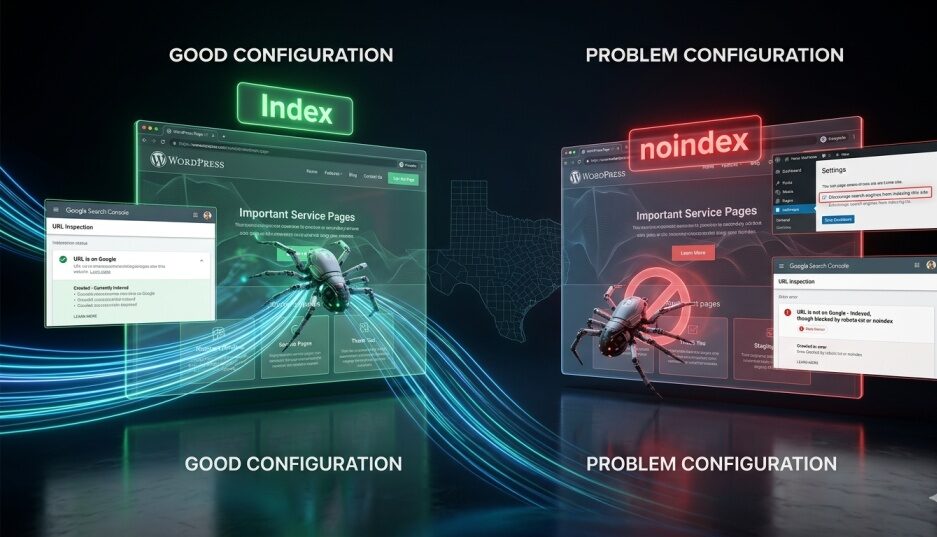
The noindex meta tag tells Google to crawl a page but not include it in search results. It’s useful for things like thank-you pages, internal admin views, and staging content. It’s a problem when it’s applied to pages you actually want ranked.
This happens more often than it should. A developer enables “Discourage search engines from indexing this site” in WordPress settings during a build and forgets to disable it at launch. Or an SEO plugin is configured to noindex categories, tags, or author archives and also catches pages it shouldn’t.
Check your most important pages individually in Search Console’s URL Inspection tool. Confirm they are “URL is on Google” and that no noindex directive is present.
Point 4 — Crawl Errors in Google Search Console
Google Search Console’s Coverage report shows which pages are indexed, which are excluded, and which have errors. Review it for:
- 404 errors on pages Google has tried to crawl (often broken internal or external links pointing to deleted content)
- Soft 404s — pages that return a 200 OK status code but show “page not found” type content
- Server errors (5xx) indicating hosting or plugin conflicts
- Excluded pages you want included
For Texas SMBs with WordPress sites that have been running for several years, accumulated 404 errors from deleted pages, changed URLs, and plugin removals are common. They’re not ranking catastrophes individually, but they waste crawl budget and create a messy technical footprint.
Point 5 — Redirect Chain Audit
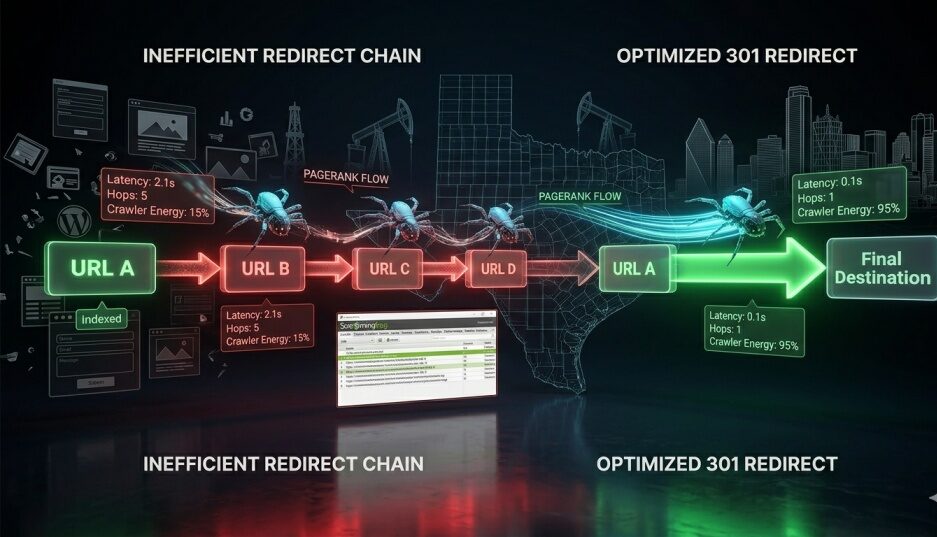
A redirect chain is what happens when URL A redirects to URL B, which redirects to URL C. Each hop in the chain dilutes the link equity passing through the redirect and slows down the crawl. Redirect chains longer than two hops are worth collapsing into single-hop redirects.
Screaming Frog can crawl your site and flag redirect chains automatically. Look particularly for chains that have accumulated over time as pages were moved, redesigned, or rebranded. A Texas business that’s had the same domain for five to eight years with a couple of site redesigns in between often has a significant redirect chain problem that nobody cleaned up.
Point 6 — Orphan Pages
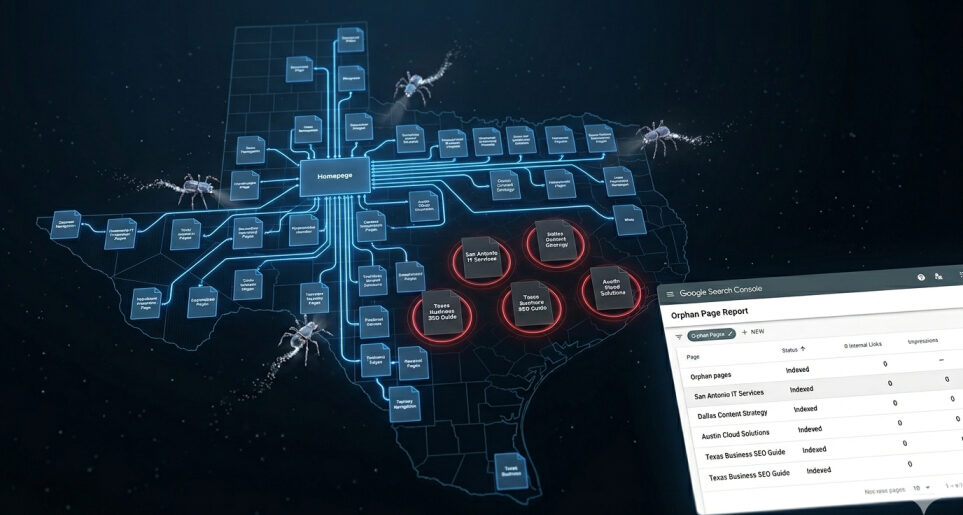
An orphan page is a URL that exists in your sitemap or is indexed by Google but has no internal links pointing to it from any other page on your site. Google discovers pages primarily through links. Orphan pages are found, indexed, and then essentially forgotten; they get no crawl priority and receive no PageRank flow.
Pull a list of your indexed URLs from Search Console and cross-reference them with Screaming Frog’s internal link report. Anything that shows up in one list but not the other is worth investigating.
Point 7 — Pagination Handling
If your WordPress site uses paginated content, a blog archive that runs across multiple pages, a long product listing, or a multi-page article, Google needs to be able to crawl the pagination correctly without treating each page as duplicate content.
Check that paginated URLs are self-referencing canonical (the paginated page canonicalizes to itself, not to page 1) and that the next/prev navigation is clean and crawlable. The old rel=prev/next HTML attributes were deprecated by Google in 2019, so if your site still uses them, that’s fine but not providing the SEO signal it once did. What matters now is that paginated pages are internally linked, non-canonicalized to page 1, and included in your sitemap.
Point 8 — AI Bot Crawl Access
This is a 2025–2026 audit point that most technical SEO checklists haven’t caught up to yet.
AI search systems, including the crawlers behind Google AI Overviews (AdsBot-Google), Perplexity (PerplexityBot), Anthropic (ClaudeBot), and OpenAI (GPTBot), use their own web crawlers to index content for AI-generated responses. If your robots.txt blocks these crawlers, your content cannot be cited in AI Overviews or AI search engine responses.
Check your robots.txt for any “Disallow:” directives targeting GPTBot, ClaudeBot, PerplexityBot, or other AI crawlers. Unless you have a specific strategic reason to block AI citations, disallowing these bots reduces your visibility in AI search responses, which are increasingly the first touchpoint in the search journey for a growing share of queries.
Section 2: Site Speed and Core Web Vitals
Google confirmed in 2021 that Core Web Vitals are a ranking factor. In 2024, Google replaced the First Input Delay (FID) metric with Interaction to Next Paint (INP), raising the bar for interactive performance. Texas SMB websites — particularly those running heavy WordPress page builders like Elementor or Divi — frequently fail these metrics in ways that are fixable but require specific attention.
Point 9 — Largest Contentful Paint (LCP)
LCP measures how quickly the largest visible content element on a page loads. Google’s threshold for a “Good” LCP is under 2.5 seconds. For most WordPress sites, LCP is the hero image in a homepage banner, a large text block, or a featured image at the top of a blog post.
Common LCP failures on Texas WordPress sites: – Unoptimized hero images served at full resolution to mobile devices – Images without explicit width and height attributes (causes reflow) – Server response time dragging LCP on shared hosting environments – Lazy loading applied to the LCP image itself (correct lazy loading should skip the above-the-fold image)
Run PageSpeed Insights on your homepage and three most important service pages. LCP failures on service pages directly affect conversion paths, not just rankings.
Point 10 — Interaction to Next Paint (INP)
INP replaced FID as a Core Web Vital in March 2024. Where FID measured the delay before a browser first responds to a click, INP measures the full responsiveness of every interaction on a page throughout the user’s visit. It’s a harder metric to pass.
INP failures are almost always caused by JavaScript: too much of it, loaded too eagerly, blocking the browser’s main thread. WordPress sites with multiple plugins each loading their own JavaScript are particularly vulnerable. If your INP score in PageSpeed Insights is above 200ms (Google’s “Needs Improvement” threshold), you likely have a JavaScript bloat problem worth diagnosing.
Point 11 — Cumulative Layout Shift (CLS)
CLS measures visual instability, ,the degree to which page elements shift around as the page loads. A layout that jumps when images load, or ads appear frustrates users and signals poor page quality to Google.
On WordPress sites, CLS is commonly caused by images without declared dimensions, web font swaps, and dynamically injected elements (pop-ups, cookie banners, chat widgets) that appear late in the load sequence. The fix is usually straightforward once the specific elements causing the shift are identified in the PageSpeed Insights report.
Point 12 — Time to First Byte (TTFB) and Hosting Quality
TTFB is how long it takes your server to send the first byte of a response after a browser requests it. Google’s guideline is under 800ms; anything above 1.8 seconds is flagged as poor. TTFB is almost entirely a hosting and server configuration issue.
Texas businesses on shared hosting plans running WordPress frequently fail TTFB benchmarks, particularly under moderate traffic. Managed WordPress hosting providers — WP Engine, Kinsta, Flywheel — typically deliver TTFB in the 100–300ms range with proper configuration. Shared hosting can sit at 800ms to 2 seconds. The difference is a ranking factor and a user experience gap that affects every page load, every time.
If your TTFB is consistently above 600ms, upgrading your hosting environment will produce a more significant performance improvement than any WordPress optimization plugin.
Point 13 — Image Optimization and Next-Gen Formats
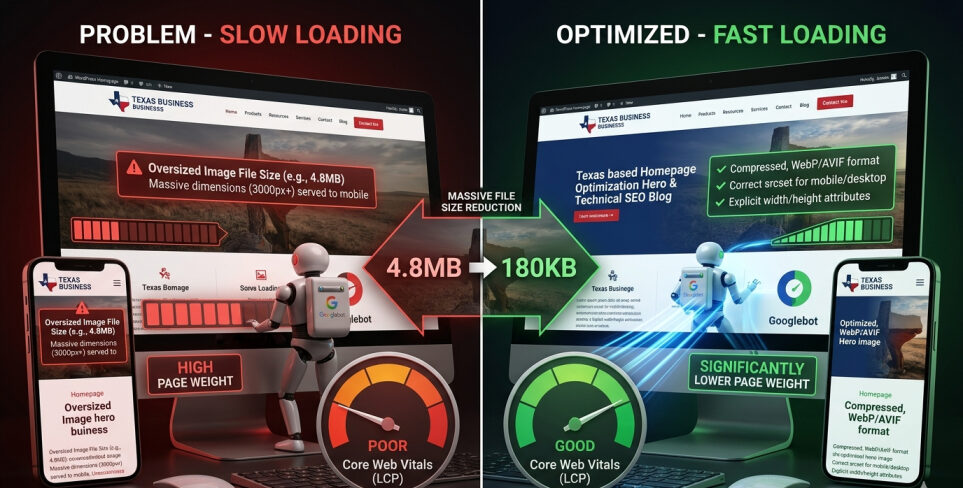
Oversized images are the single most common performance problem on Texas WordPress sites. An image exported at 3,000px wide served to a 390px mobile screen is carrying ten times the file weight it needs to.
Google’s PageSpeed Insights report will flag specific oversized images by filename, making this a targetable fix rather than a general suggestion.
Point 14 — JavaScript Render-Blocking
JavaScript files that load synchronously before the page renders block the browser from displaying content until they’ve finished executing. This directly hurts LCP and INP scores.
In WordPress, render-blocking JS typically comes from plugins that weren’t written with performance in mind. Tools like WP Rocket or LiteSpeed Cache can defer non-critical JavaScript loading. But be careful: deferring the wrong scripts can break interactive functionality. Test any JS deferral changes on a staging environment before pushing to production.
Point 15 — WordPress Caching Plugin Configuration
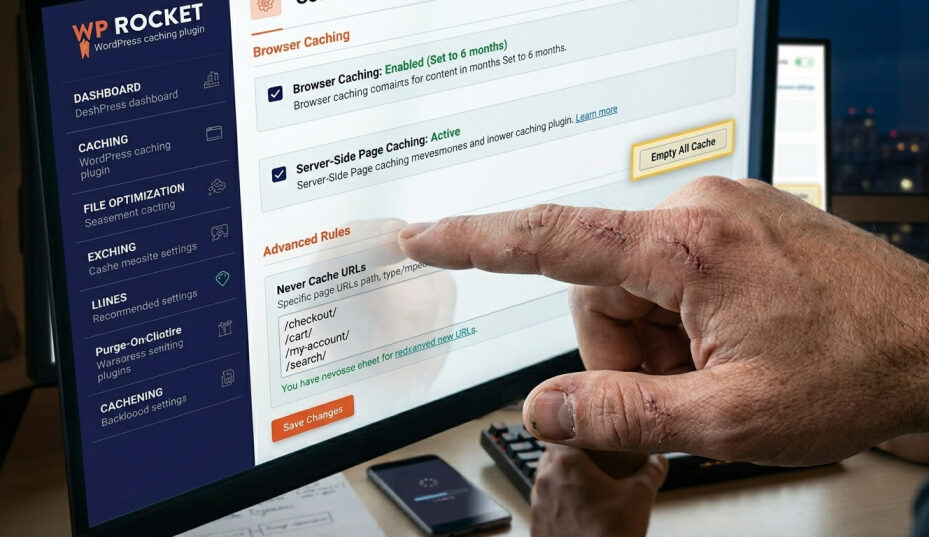
Caching reduces server load and dramatically speeds up repeat page loads by serving pre-built HTML rather than generating pages fresh from the database on each request.
Caching plugins (WP Rocket, W3 Total Cache, WP Super Cache) need to be configured correctly to be effective: – Browser caching enabled and set to appropriate durations – Server-side page caching active – Cache exclusions set correctly for dynamic pages (checkout pages, logged-in user views, search results) – Cache cleared properly after content updates
A misconfigured cache that serves stale content to users or fails to cache high-traffic pages at all is common and easy to overlook. Check your cache headers using a tool like GTmetrix’s waterfall view.
Section 3: On-Page Technical Structure
Point 16 — Title Tag Uniqueness and Length
Every page on your site needs a unique title tag between 50 and 60 characters. Duplicate title tags — particularly across service pages targeting similar keywords — split search signals and reduce the likelihood any individual page ranks well.
In WordPress, Yoast SEO and Rank Math both provide title tag editing at the page level. Check your most critical pages individually. Also audit for template-generated duplicates: if your theme is generating title tags automatically using a format like “Page Name | Site Name” across all pages, you may have dozens of functionally similar tags with minimal differentiation.
Point 17 — Meta Description Coverage
Meta descriptions don’t directly affect rankings, but they do influence click-through rate, which has a meaningful indirect effect on search performance. More importantly, pages with missing meta descriptions have them auto-generated by Google, which often produces unhelpful or truncated snippets.
Check that all indexed pages have custom meta descriptions between 140 and 155 characters. Screaming Frog can export a list of all pages with missing or duplicate meta descriptions in one pass.
Point 18 — Heading Hierarchy
Each page should have exactly one H1 tag, and it should contain the primary keyword target for that page. H2 through H6 tags should create a logical hierarchical structure that helps both users and crawlers understand the page’s content organization.
Common WordPress heading problems: – Page builders (Elementor, Divi) applying H1 tags to styling elements in the hero section rather than the actual page title – Multiple H1 tags on a single page – H3 tags used before H2 tags in the content flow – Theme-generated heading tags in sidebar or footer elements competing with page content headings
Point 19 — Canonical Tag Implementation
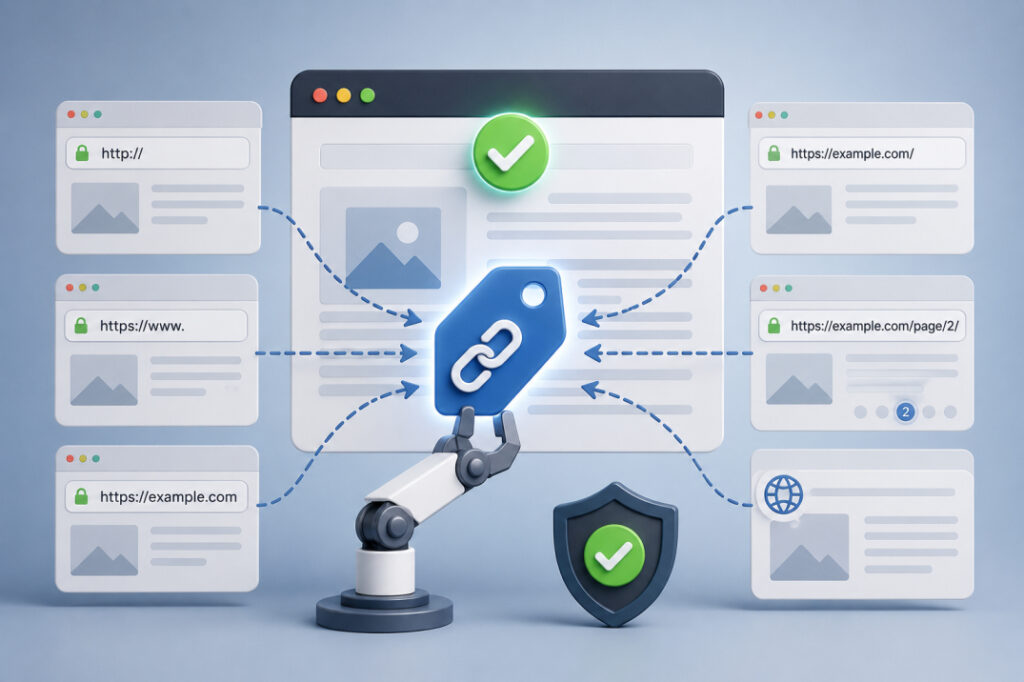
Canonical tags tell Google which version of a URL is the authoritative one when multiple URLs serve similar or identical content. On WordPress, this becomes important for:
- HTTP vs. HTTPS versions (should resolve via redirect, but canonical as a backup)
- www vs. non-www versions
- URLs with and without trailing slashes
- Paginated archives
- Any syndicated or republished content
Check that every page self-canonicalizes to the correct URL and that no unintentional cross-canonical signals exist (a page canonicalizing to a URL that returns a 404, for example, is an indexation trap).
Point 20 — Internal Linking Depth and Orphan Content
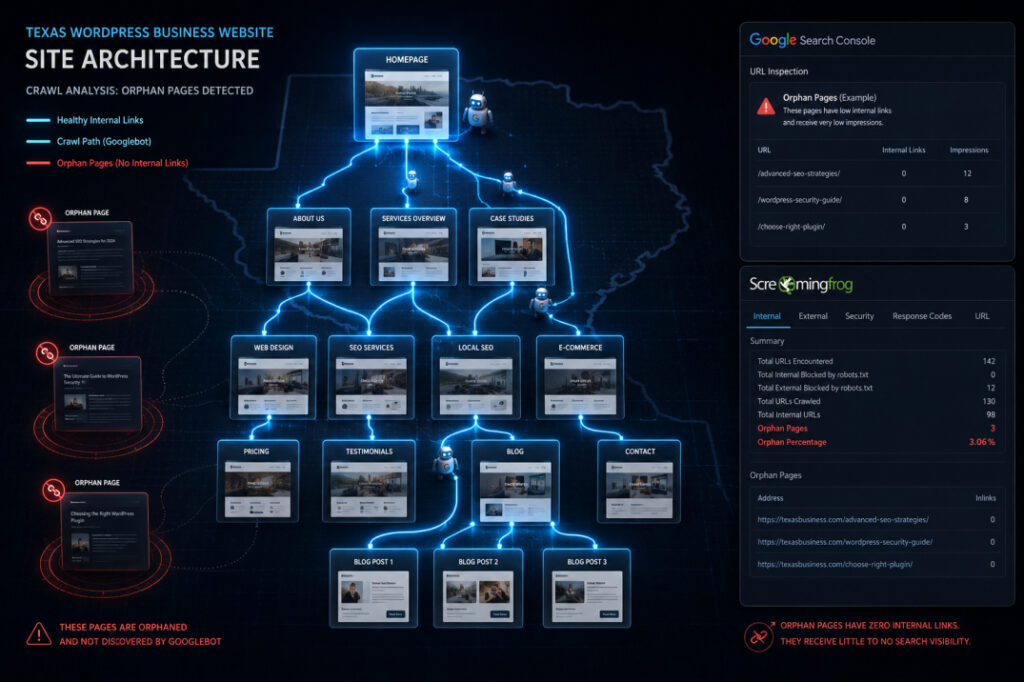
Internal links distribute link equity and help Google understand the topical structure of your site. Service pages should receive internal links from relevant blog posts and from the homepage or services overview. Blog posts should link to service pages when the context is natural.
For SEO purposes, no important page should sit more than three clicks from the homepage. Pages that are five or six levels deep in a site’s link architecture receive minimal crawl priority and minimal PageRank flow regardless of how well-written they are.
Audit your most commercially important pages in Search Console’s URL Inspection tool and check how many internal links point to them. A service page with two or three internal links is underserved. The same page with fifteen to twenty contextual internal links from relevant supporting content performs measurably better.
Our SEO services for Texas businesses include internal linking structure audits as part of a complete technical review, because getting this architecture right is often the highest-leverage fix available on an established site.
Point 21 — Structured Data and Schema Markup
Schema markup is code added to a page’s HTML that tells Google and AI systems precisely what type of content a page contains. Google uses structured data to generate rich results, such as star ratings, FAQ dropdowns, event dates, business information panels, and to feed AI Overviews with accurate entity data.
For a Texas SMB WordPress site, the highest-priority schema types are: – LocalBusiness or Organization — name, address, phone number, service area – WebPage — page type and entity relationships – FAQPage — for pages with Q&A sections, which generate Featured Snippet and AI Overview citations – Article or BlogPosting — for blog content, includes author, publish date, and topic
Schema can be implemented via Yoast SEO Premium, Rank Math’s Schema module, or a dedicated plugin like Schema Pro. Validate implementation using Google’s Rich Results Test tool.
Point 22 — Breadcrumb Navigation
Breadcrumbs show users and crawlers where they are within a site’s hierarchy. Google uses breadcrumb schema to generate breadcrumb trails in search results, replacing full URLs with navigational paths that improve click-through rates for results pages.
In WordPress, Yoast SEO and Rank Math both support breadcrumb schema. Make sure breadcrumb markup is enabled in your SEO plugin settings and that your theme is actually outputting breadcrumbs in page templates where they’re relevant (service pages, blog posts, category pages).
Section 4: WordPress-Specific Technical Issues
Point 23 — Duplicate Content from WordPress Default Archives
WordPress automatically generates multiple archive pages: category archives, tag archives, author archives, date archives, and format archives. By default, these pages contain the same post content as individual blog posts, creating duplicate or near-duplicate content across multiple URLs.
Unless your category or tag pages add genuine editorial value — original introductions, curated context, meaningful organization — they should be noindexed. Yoast SEO and Rank Math both have archive management settings that handle this. For sites with hundreds of posts across many categories, uncontrolled archive page proliferation can dilute crawl budget significantly.
Point 24 — Permalink Structure
WordPress defaults to numeric permalinks (?p=123) that are meaningless to search engines and users alike. Check that your site uses a descriptive permalink structure. The most common SEO-friendly choice is /%postname%/ for posts and a consistent structure for pages.
Also audit whether permalinks have been changed at any point in the site’s history without proper redirects in place. A permalink structure change that wasn’t accompanied by 301 redirects from old URLs to new ones is a significant technical debt item that can orphan years of indexed content.
Point 25 — Plugin Conflict Impact on Crawlability
Plugins are WordPress’s strength and its biggest technical liability. A conflict between two plugins can generate JavaScript errors that prevent pages from rendering correctly for crawlers, duplicate functionality that bloats page weight, or create conflicting robots directives.
Run a plugin audit: – Deactivate any plugins that aren’t actively providing functionality – Check for plugins that have been abandoned by developers (no updates in 12+ months on a site running current WordPress versions is a risk) – Identify any duplicate functionality plugins (two caching plugins, two SEO plugins, two form plugins)
The number of active plugins isn’t itself the issue. The quality and currency of each plugin and the absence of conflicts between them is what matters.
Point 26 — WordPress Database Optimization
Over time, WordPress accumulates database overhead, i.e, post revisions, auto-drafts, spam comments, transient options, orphaned metadata from deleted plugins. This bloat slows down database queries, which increases Time to First Byte, which hurts Core Web Vitals.
Plugins like WP-Optimize or Advanced Database Cleaner can audit and clean database overhead safely. Run cleanup operations on a staging environment first. For large sites, limit post revision storage to 5–10 revisions maximum using a constants filter in wp-config.php.
Point 27 — Page Builder Technical SEO Considerations
Elementor, Divi, and the Gutenberg block editor all generate markup differently, and all three have specific technical SEO considerations.
Elementor: Generates significant CSS inline and loads substantial JavaScript on every page. The Pro version’s performance optimization settings, including Asset Optimization and Improved Asset Loading, can reduce bloat considerably. Without these enabled, Elementor sites frequently fail Core Web Vitals.
Divi: Similar to Elementor in terms of JS/CSS weight. Divi’s “Performance” settings in the Theme Customizer include options for Critical CSS, deferred JavaScript, and static CSS file generation that should be enabled by default on production sites.
Gutenberg: Leaner than either page builder by default, but third-party Gutenberg block libraries can add plugin-level weight. Full Site Editing (FSE) themes have their own set of technical SEO considerations around template hierarchy and dynamic block rendering.
If your site uses a page builder, verify that the performance optimization features specific to that builder are actually enabled; these are often off by default and require manual activation.
Section 5: AI Search and Modern Indexing Readiness
The third checklist section that most technical SEO guides haven’t fully caught up to covers the specific requirements for AI search visibility. By 2026, a meaningful share of search journeys begin with an AI-generated response rather than a traditional results page. Optimizing for this requires different structural choices than traditional on-page SEO.
Point 28 — Structured Content for AI Overview Citation
Google’s AI Overviews pull content from pages that answer specific questions clearly and early. The structural signals AI systems use to identify citable content differ from traditional ranking signals.
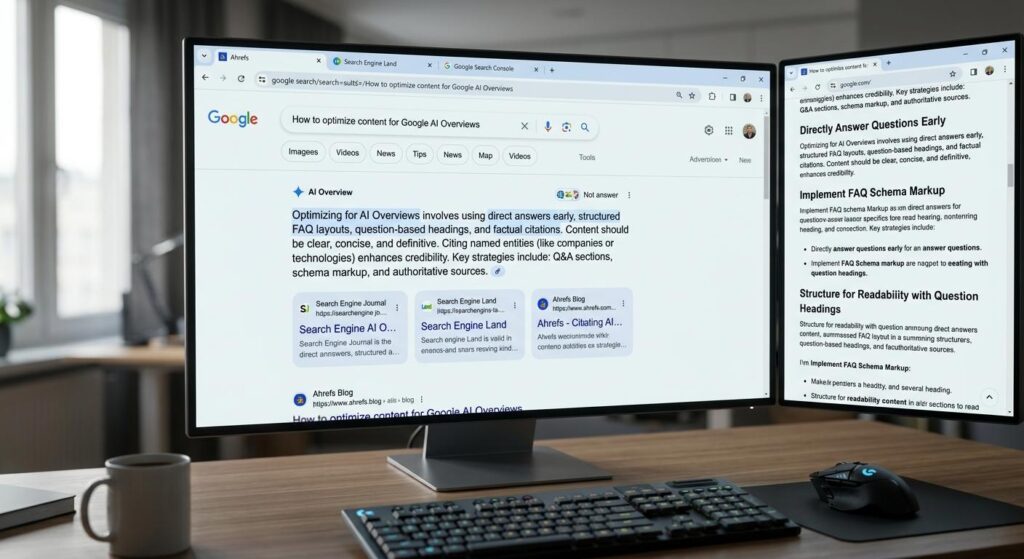
Audit your most important informational pages for: – A clear, direct answer to the target question in the first two to three paragraphs – Section headings framed as questions or direct answers – FAQPage schema on pages with Q&A sections – Factual claims supported by named sources (not vague “studies show” language) – Defined entities: named people, companies, locations, specific tools or technologies
Pages that hedge, ramble, or bury the direct answer deep in the body text are less likely to be cited in AI Overviews than pages that front-load the answer and support it with specific evidence.
Point 29 — E-E-A-T Signal Implementation
Google’s quality evaluator guidelines emphasize Experience, Expertise, Authoritativeness, and Trust. These signals are evaluated at both the page and domain level, and they directly influence whether a site is used as a source in AI-generated responses.
For a Texas business WordPress site, the practical E-E-A-T checklist includes: – Author bio pages with real credentials, photos, and professional profiles – About page with named team members and company history – Contact page with verifiable business information (matching Google Business Profile) – NAP consistency: Name, Address, Phone number identical across the site and all directories – HTTPS security certificate (current, no mixed content warnings) – Privacy policy and terms of service pages – External mentions and citations from credible Texas or industry sources
E-E-A-T isn’t a plugin setting. It’s an accumulation of trust signals built into the site’s architecture and content strategy over time. Audit what you have and identify the specific gaps.
Our web design and development services build E-E-A-T signals into site architecture from the start, because retrofitting them onto an existing site is significantly more complex than designing for them at the build stage.
Point 30 — Search Console Performance Review Cadence
Technical SEO isn’t a one-time fix. It’s an ongoing maintenance function. Google Search Console’s Performance report shows you which queries are driving impressions and clicks, which pages are gaining or losing position, and where CTR gaps suggest title or meta description improvements.
A monthly review cadence at minimum, weekly for sites actively publishing content, catches technical drift before it becomes a ranking problem. Set up email alerts in Search Console for coverage errors and manual actions so critical issues don’t go unnoticed between reviews.
After the Audit: Prioritizing What You Fix First
Running through 30 checklist points will surface multiple issues. Not all of them have equal impact, and trying to fix everything at once is rarely practical. Here’s a triage framework:
Critical — Fix Immediately: – Robots.txt blocking crawlers – Noindex on pages you need indexed – Missing XML sitemap or sitemap errors in Search Console – HTTP site not redirecting to HTTPS – Significant 404 error volumes from broken links on important pages
High Priority — Fix Within 30 Days: – Core Web Vitals failures on primary pages (LCP, INP, CLS) – Hosting upgrade if TTFB consistently exceeds 800ms – Duplicate content from uncontrolled WordPress archives – Missing or duplicate title tags on service and landing pages
Medium Priority — Fix Within 90 Days: – Schema markup gaps – Internal linking depth issues – Breadcrumb implementation – Page builder performance settings – AI bot crawl access verification
Ongoing Maintenance: – Monthly Search Console performance review – Quarterly full crawl via Screaming Frog – Annual full technical audit pass
When a DIY Audit Reveals Professional-Level Problems
Some of what this checklist surfaces is actionable without technical help: installing the right plugin settings, resizing images, fixing noindex tags, submitting a sitemap. Other findings require someone who can read server logs, restructure database queries, rewrite WordPress template functions, or diagnose JavaScript conflicts across a complex plugin stack.
If your audit reveals Core Web Vitals failures rooted in hosting infrastructure, Elementor performance bloat that plugin settings don’t fully resolve, or a crawlability structure that’s going to take significant redirect engineering to clean up, those are problems that go beyond what a business owner should be expected to fix alone.
The most efficient path is often bringing in a technical SEO team to handle the complex items while you handle the content-level work.
Texas businesses that want a complete technical SEO review, paired with a clear prioritized fix plan and implementation support, can work with our SEO services team. We work specifically on WordPress sites for Texas SMBs and growth-stage companies, and we pair technical audit work with the kind of web design and development intervention that the deepest technical issues actually require.
The 30 points in this checklist are the starting line. What you do with the audit determines where you finish.